
When upgrading to, or updating, Windows 10, you might encounter the error “We couldn’t update system reserved partition”, error code 0xc1900104, or error code 0x800f0922.
The System Reserved Partition (SRP) may be full. The System Reserve Partition (SRP) is a small partition on your hard drive that stores boot information for Windows. Some third-party anti-virus and security apps write to the SRP, and can fill it up.
Caution: these steps are complicated, and carry some risk. This is best done by advanced users with experience using the command line. If you make an error in entering these commands, you could put your device in a no-boot situation, and possibly lose data you have stored on the device.
To upgrade your device, you’ll need to free up 15MB of space on the SRP using the appropriate method below, and then try the upgrade again. If you’re updating Windows 10, you need to free up 13MB.
First, determine whether the SRP is GPT or MBR partition style:
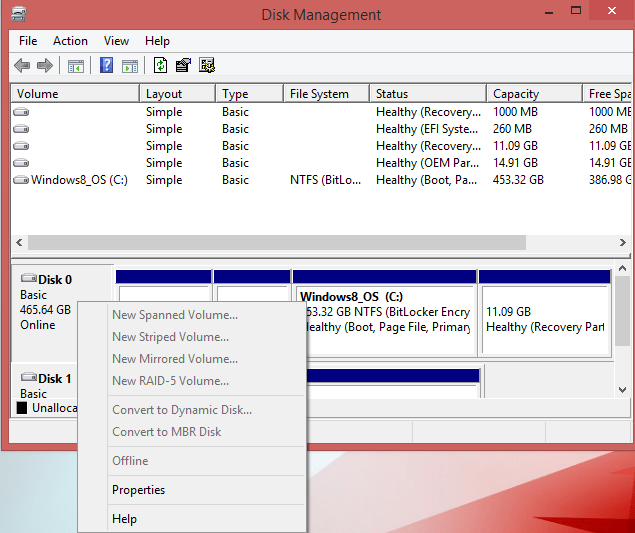
Second, choose which method you need:
Method # 1 – Windows 10 with GPT partition
Method # 2 – Windows 10 with MBR partition
Restore permissions
Method # 3 – Windows 7 or 8/8.1 with GPT partition
Method # 4 – Windows 7 with MBR partition
This makes a permanent, but small, increase in the available space of the SRP.
Remove language folders
Truncate the NTFS Log
Resize the USN journal, if truncating the NTFS Log doesn’t increase the free space in the SRP.
Restore permissions
If the steps above have you concerned or you are uncomfortable performing them, there is another route you can take which involves purchasing a 3rd party partitioning application (or attempting to use the free Easus Partition Mover provided below) and/or hiring a Technology Service Provider like Aloye Computer Enterprises to assist you with this problem.
Alternative Solution 1: Fix the system reserved partition Using 3rd Party Software
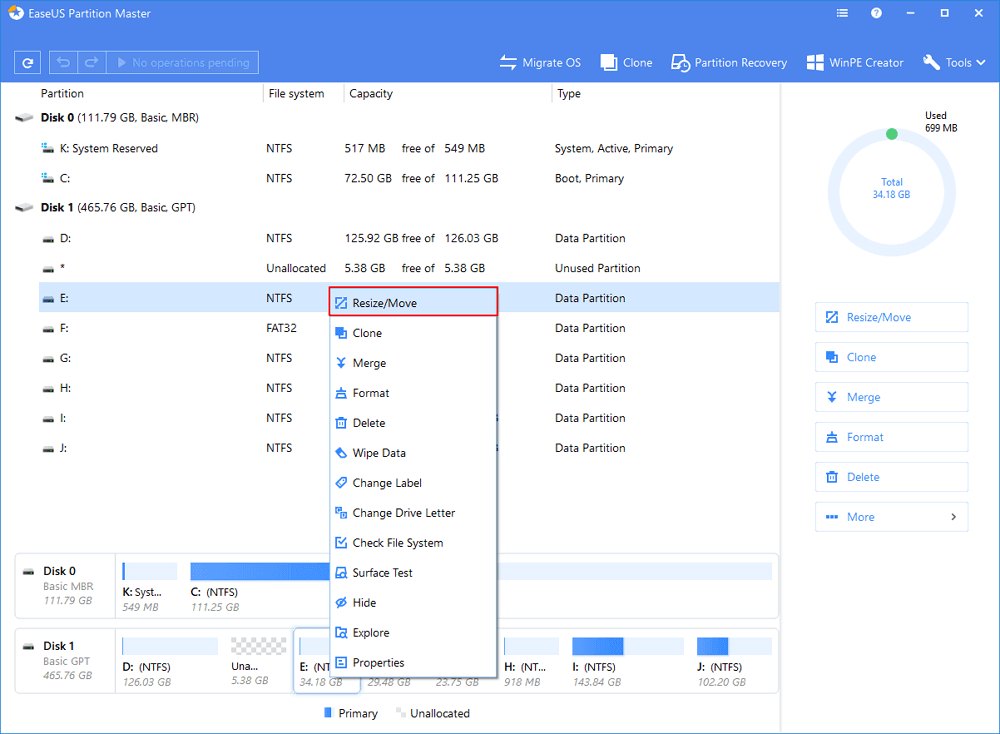
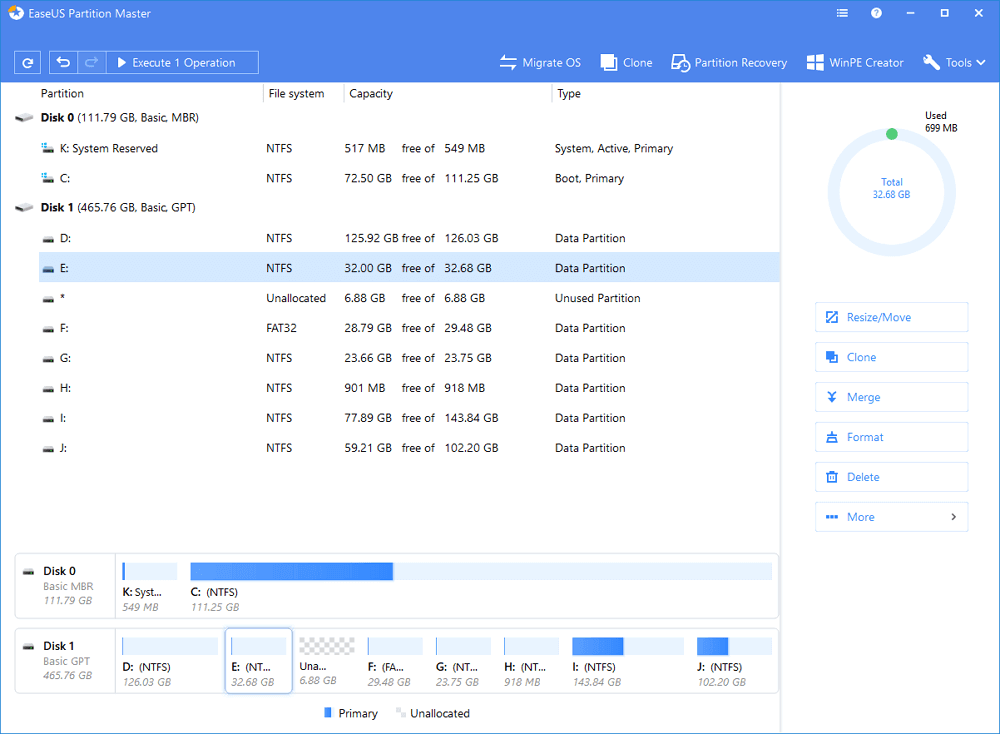
Step 1: Locate the drive/partition
Step 2: Resize the partition
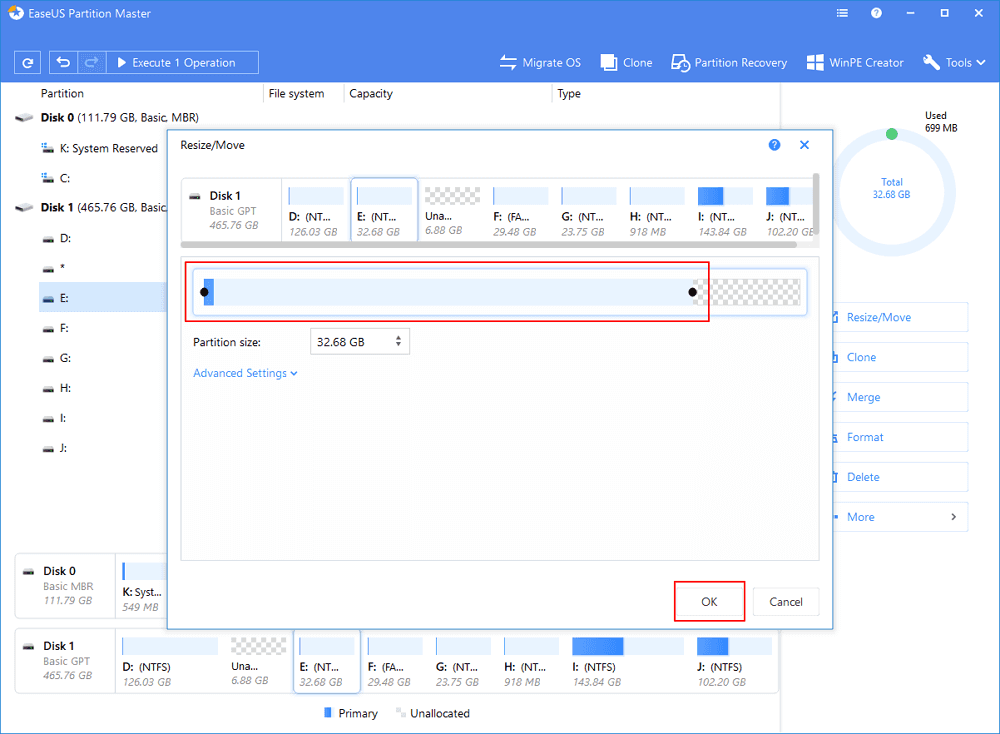
To shrink the partition, simply use your mouse to drag one of its ends into unallocated space. Expand the “Advanced Settings” list, where you can see the exact disk space for each partition. Once done, click “OK”.
Fig. 1 Unallocated space before the drive.
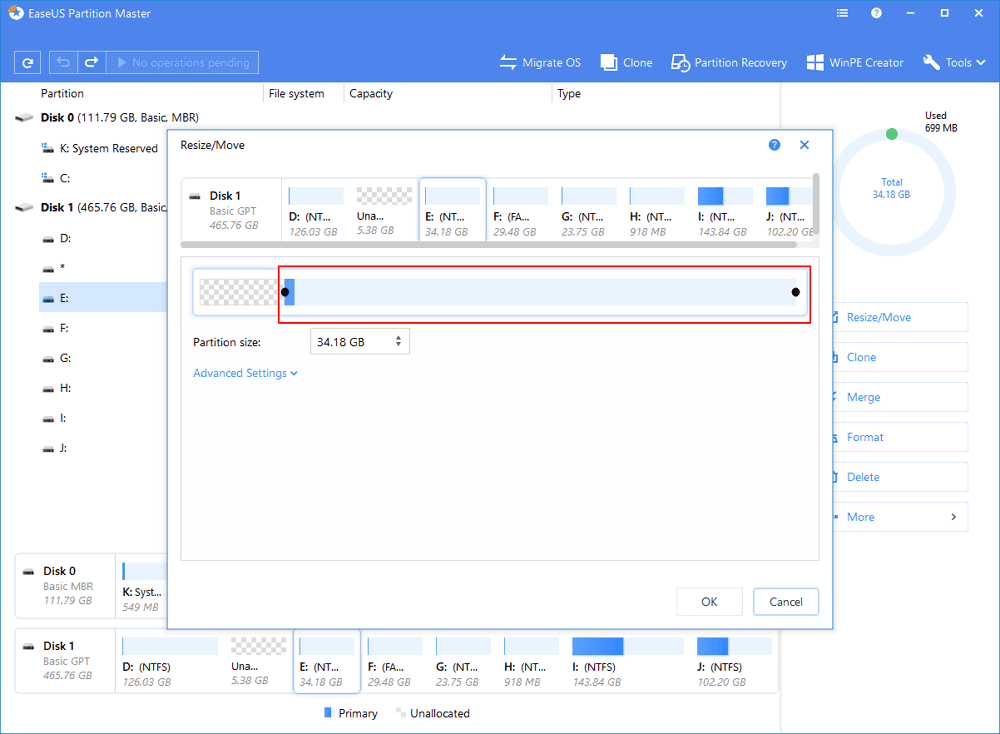
Fig. 2 Unallocated space after the drive.
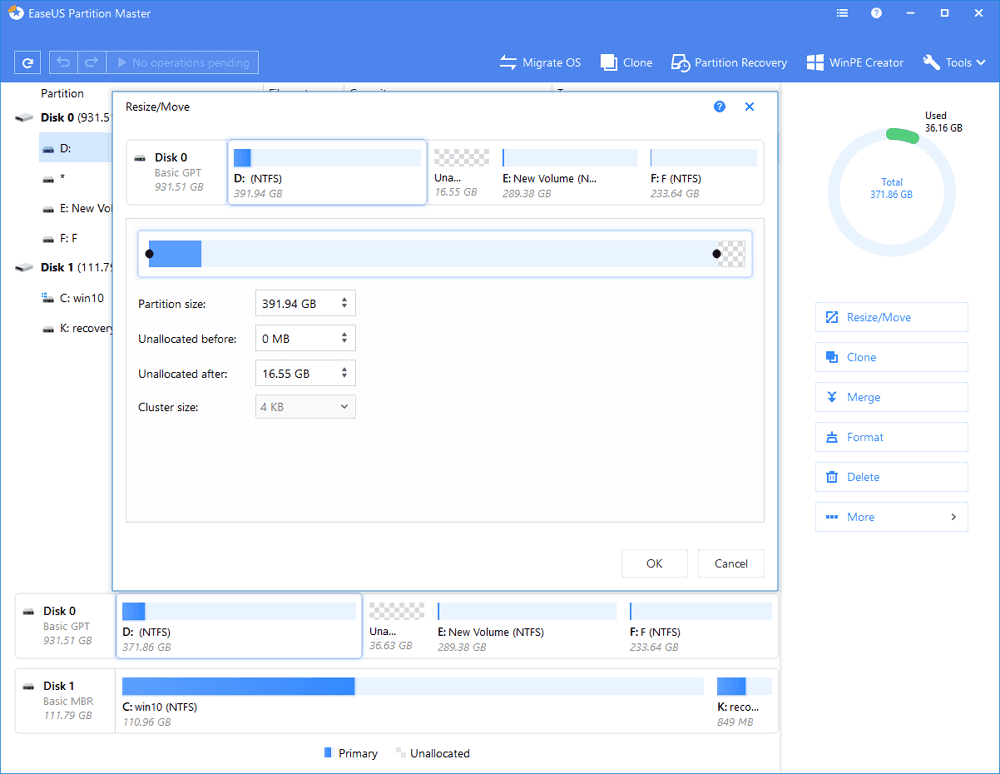
To extend the partition, make sure that there is unallocated space aside (if there isn’t, follow the above steps to create some). In the same way, drag your mouse towards the unallocated space. Click “OK”.
Fig. 3 Add unallocated space into the partition
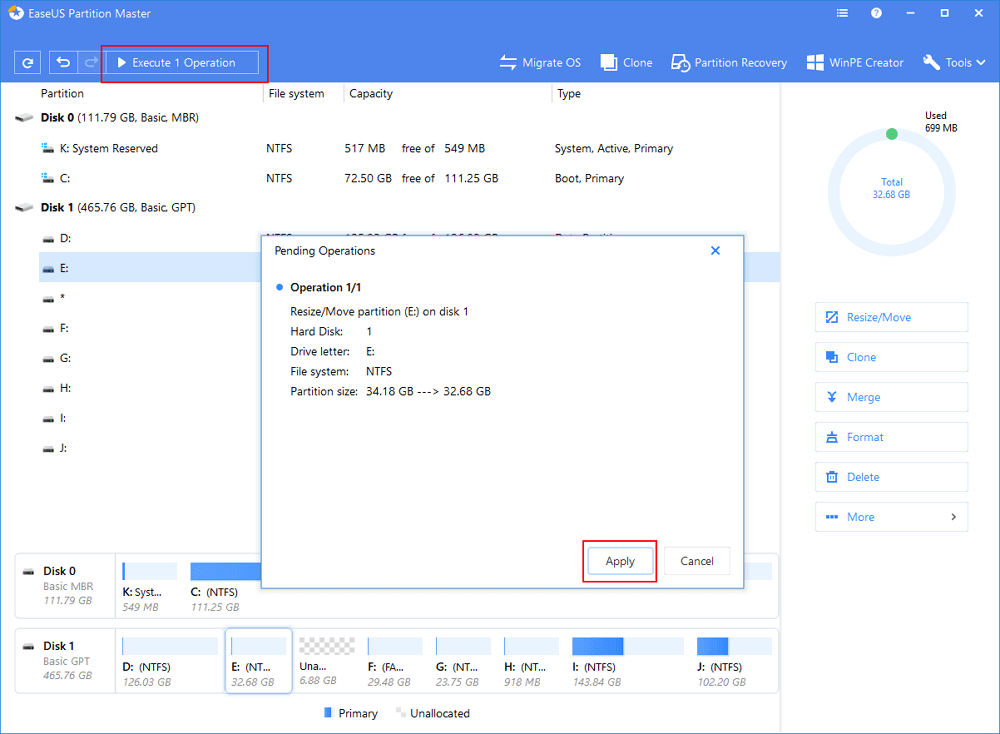
Step 3: Apply changes
To save changes, click the “Execute Operation” button and then “Apply”.
Since there is a chance the problem could be more complicated than what is addressed in this knowledge article, as there could be additional, pre-existing, and unrelated problems with your computer that may not raise to the level of visibility until you attempt to deal with this issue, you may be best suited to take your computer to local experts in the event physical access to the machine is required in order to resolve other disk or partition issues via special boot-time software that can only be used by someone who has physical access to the computer.
If there are no experts in your geographic region or if you are already an Aloye Computer Enterprises Web Hosting, Dynamics, or Microsoft Platform Customer and wish to mail your computer in for service because you prefer the service experience we provide, you may certainly contact our Business Services Team at 1-844-MR-ALOYE to set up a ship-to-repair service engagement which can range in price from $250 to $600+ depending on a number of factors such as if any pre-existing problems are present among other things.