SUMMARY AND BACKGROUND
Customers can purchase a Microsoft 365 subscription direct with GoDaddy along with their primary domain. When this occurs, GoDaddy federates this domain and tenant, making it unable to transfer under the CSP program. Moving and defederating this account has been a major pain point and it has often involved talking to GoDaddy support for many hours. In calling them to defederate the domain, they would delete all user accounts and data, so you had to make sure you had migrated the email to a new 365 tenant first before performing this cutover. Once they released the domain, it was often a scramble to get this set back up in the new 365 tenant to avoid downtime as much as possible.
In the solutions proposed in this guide you can perform the following:
-Defederate the tenant without migrating
-Never have to call GoDaddy
-Keep user accounts vs deleting them
-Have no downtime
High level-steps:
Prepare Your End Users
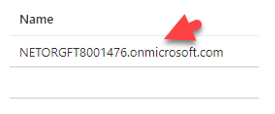
When a user sets up a 365 account directly with GoDaddy, they set up the initial user as an “admin” user but this user is redirected to the GoDaddy portal when trying to access the admin tab when going to Office.com. For this reason, we need to gain access to the true Global Admin so that we can perform the necessary PowerShell scripts to defederate the tenant.
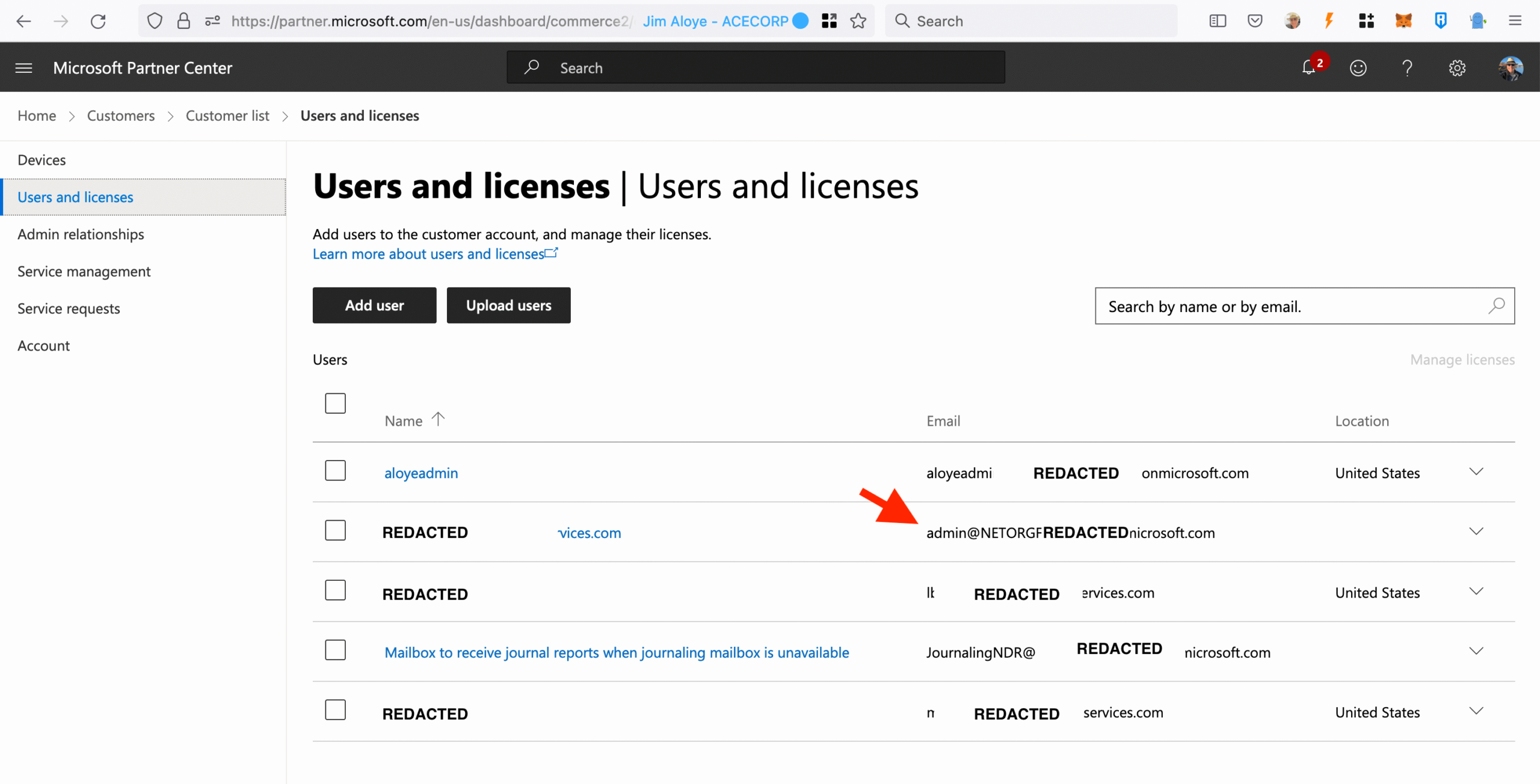
Click on this user and reset their password. If you already have access to this user, you can disregard this step.
Once you have copied the temporary password, place it in a notepad and open an incognito window in the browser. In the browser, go to office.com and sign in with that username and temporary password. Establish a new password. With this completed, you now have a user that can run the necessary powershell commands in the future steps.

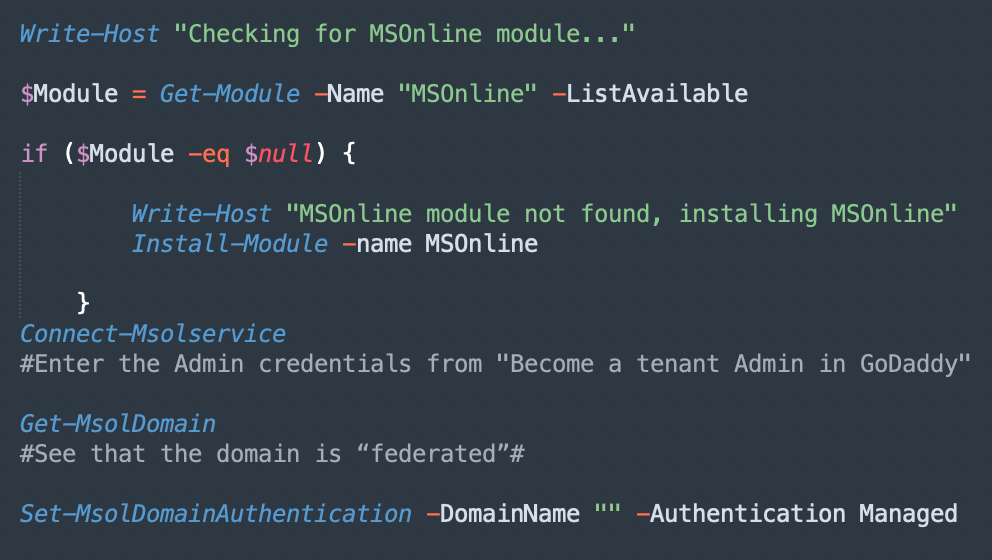
After this is complete you will get a new commandline. You can run Get-MsolDomain again and see that your domain is now “managed”.

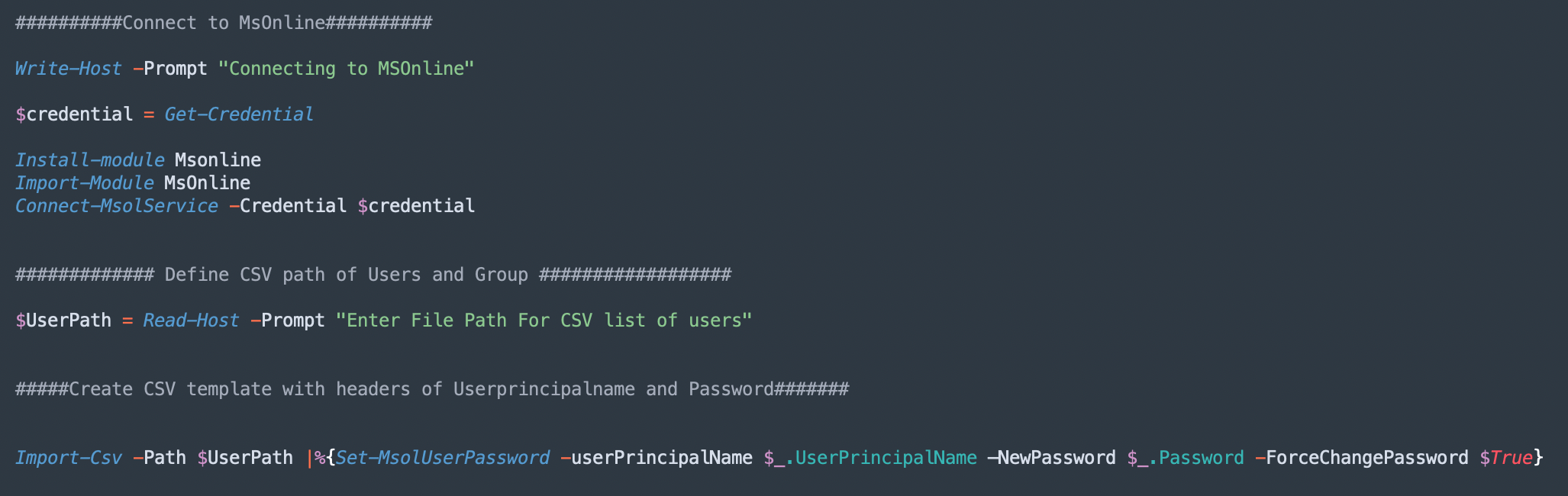
You can do this manually one user at a time if there aren’t many users in the account or you could use a powershell script to bulk update everyone passwords form a CSV file. If you plan to do them manually, then you can simply login to office.com as the admin we derived from section B and now that the tenant is defederated, you will be able to click into the admin tile and access the Users section like you are familiar with. Otherwise, you can connect to Powershell as administrator and run the powershell script below:
Now that the tenant is defederated, you can add a CSP provider with their delegated admin link. Paste the appropriate link in a browser and sign into the tenant with the Global Admin credentials if you are not already logged in. Accept the relationship. After the acceptance, reload the page and you will see a new CSP listed.
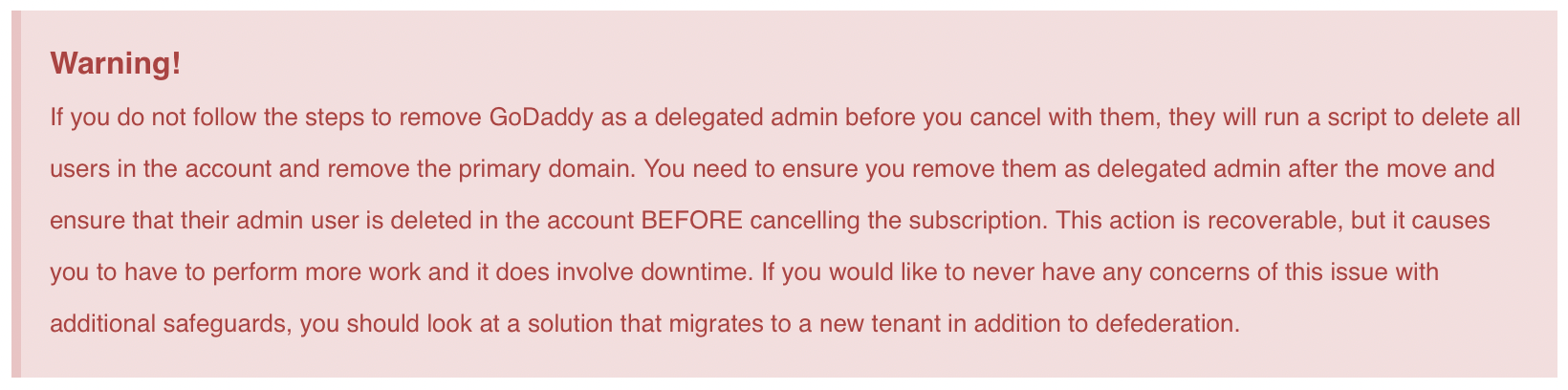
Order licensing for this customer. If you are not changing the subscription, then all you would need to do is provision the same amount of seats as you have today, remove them as delegated admin, and cancel with GoDaddy. There is no other action that would be required. License ownership would transfer and there will be no downtime for users.
If you are changing the subscriptions that are assigned to users (i.e. you are moving them from Business Standard to Business Premium as an example) you will need to perform the following steps:
In the 365 Admin Portal
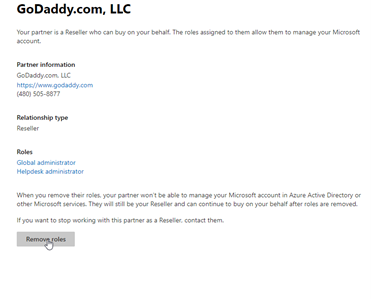
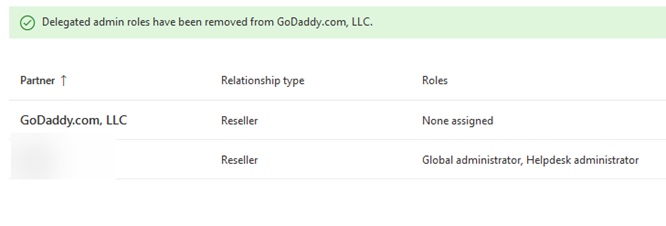
Under Settings>Partner Relationships>Click on GoDaddy and remove their roles:
In GoDaddy, cancel the renewal:
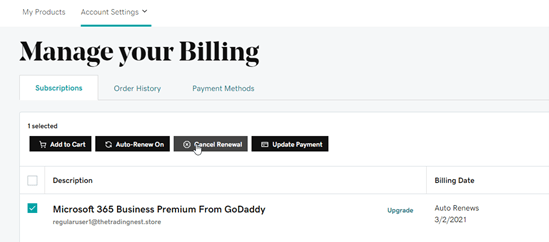
From here, the subscription from GoDaddy will expire at end of term and that is all. You now have a tenant under CSP with all of the typical management functionality you are familiar with. Hope this provided some targeted guidance on defederating a GoDaddy tenant! Please share with the community!
Here are some unique considerations in favor of performing a migration: