Microsoft & Google Authorized CSP · Sales and support 24/7

How to export passwords from Google Chrome?

How to export passwords from Google Chrome? To export your saved passwords from the Google Chrome browser, follow the steps below:

To export your saved passwords from the Google Chrome browser, follow the steps below:

  1. Open Google Chrome and go to Settings.
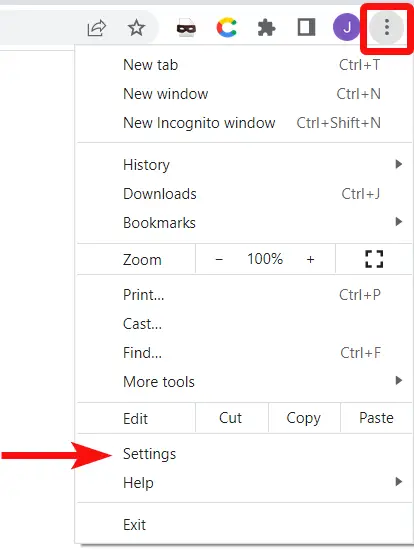
    Google export001 – How to export passwords from Google Chrome?
  2. Open Autofill tab and select Password Manager.
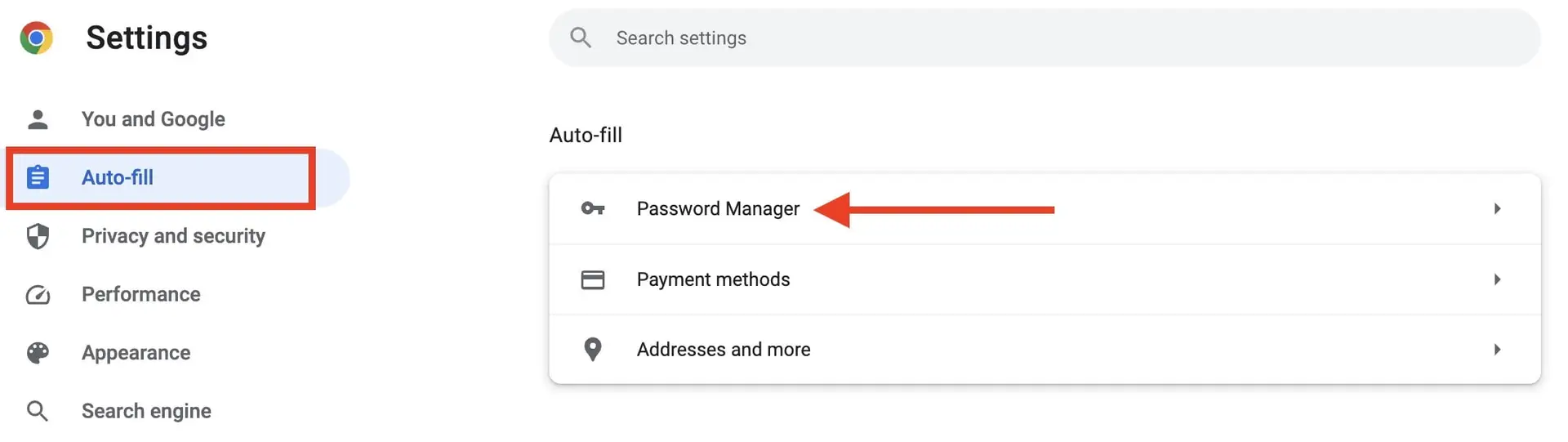
    Google export002 – How to export passwords from Google Chrome?
  3. Click on the three dots icon on the right side above the Saved Passwords list.
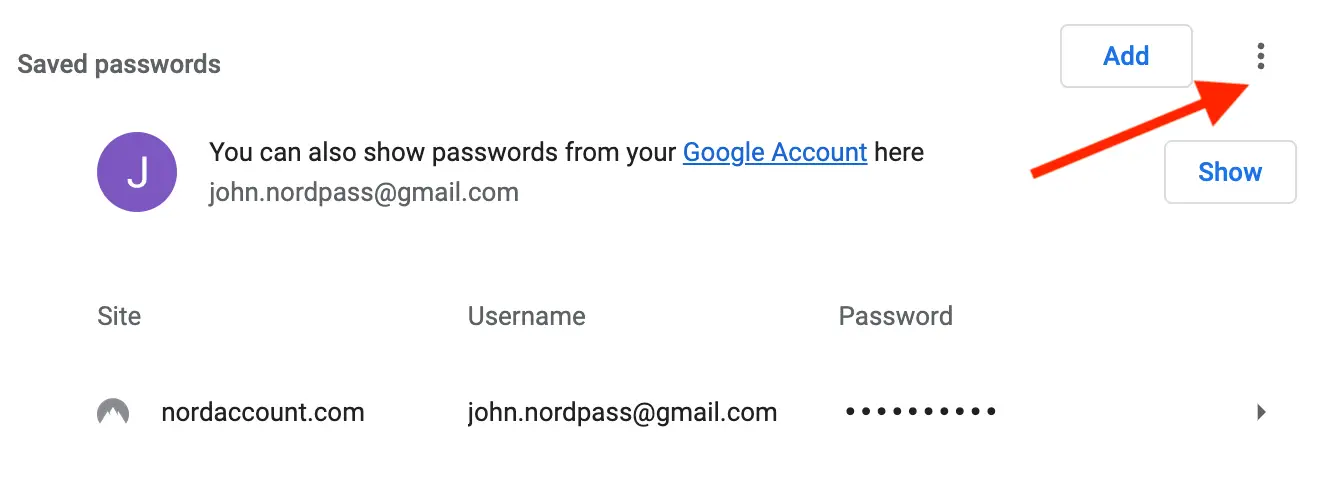
    Google export003 – How to export passwords from Google Chrome?
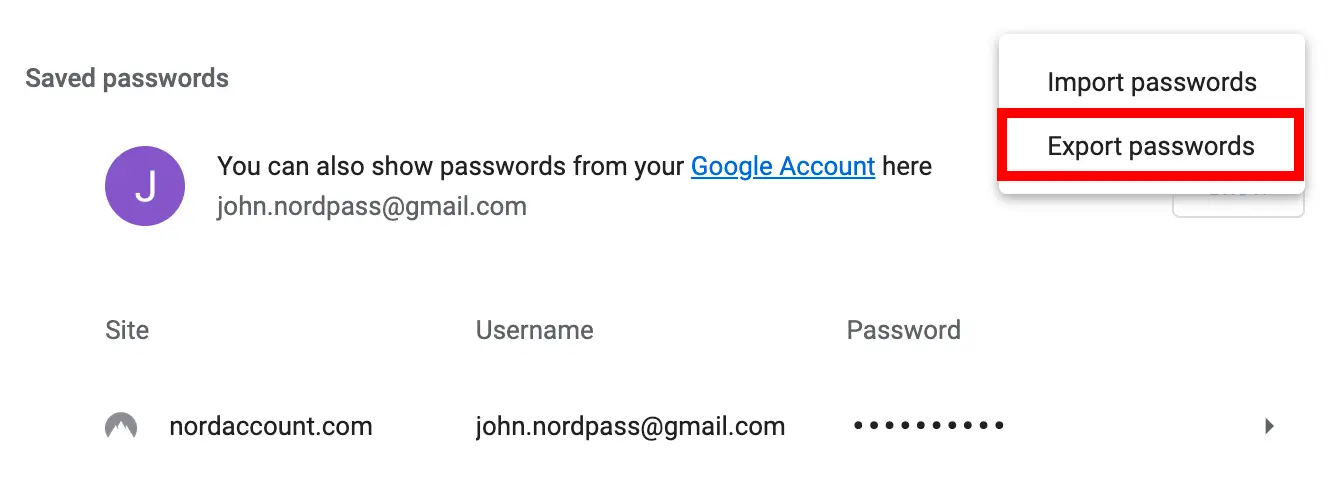
  4. Select Export passwords.
    Google export004 – How to export passwords from Google Chrome?
  5. Enter your device’s password to export the passwords.
  6. Save the .CSV file to your device.

That’s it! You have exported your login data from the Google Chrome browser.

Talk to an Aloye specialist
Sales and support are available 24/7 at 1-844-MR-ALOYE.