Microsoft & Google Authorized CSP · Sales and support 24/7

Configure Visual Studio Code for JavaScript & Html Debugging

Learn how to configure Visual Studio Code for JavaScript and HTML debugging using Live Server, browser debugging, and launch.json settings.
  1. Install Debugger for chrome extension on your VS Code.
  2. Install and activate Live Server extension on your VS Code.
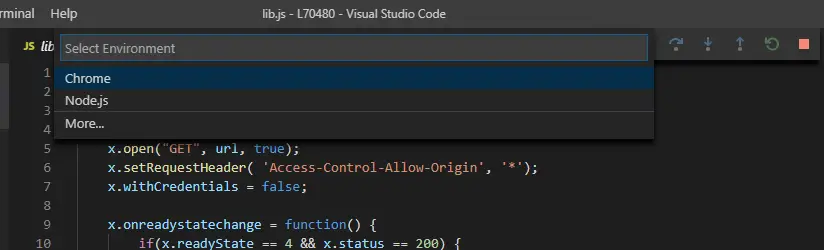
  3. Press F5 and select Chrome:
Vscode001a – Configure Visual Studio Code for JavaScript & Html Debugging
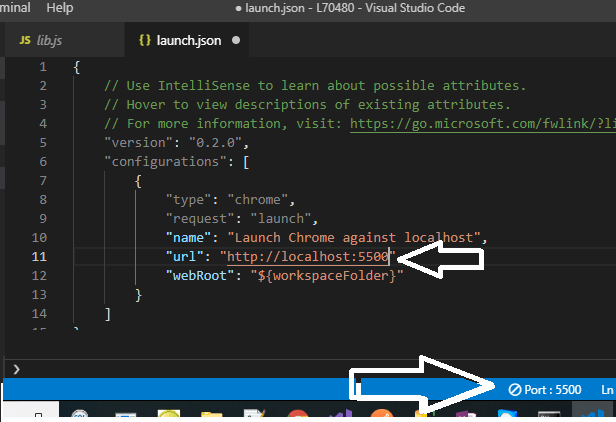
  1. Check your Live Server port* and change the generated launch.json
Vscode002a – Configure Visual Studio Code for JavaScript & Html Debugging
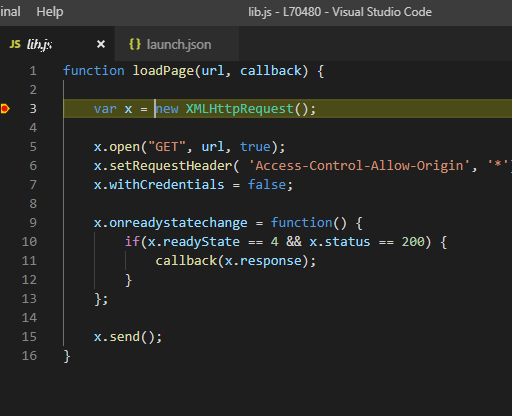
  1. Set your break points, run Live Server and press F5:
Vscode003a – Configure Visual Studio Code for JavaScript & Html Debugging

To check your Live Server port:

  1. Install Live Server & reload VS Code.
  2. Go to Preferences > Extensions > Live Server Config
  3. Scroll down to find Settings: Port and click “Edit in settings.json”. Then you’ll see the port number.
Talk to an Aloye specialist
Sales and support are available 24/7 at 1-844-MR-ALOYE.