
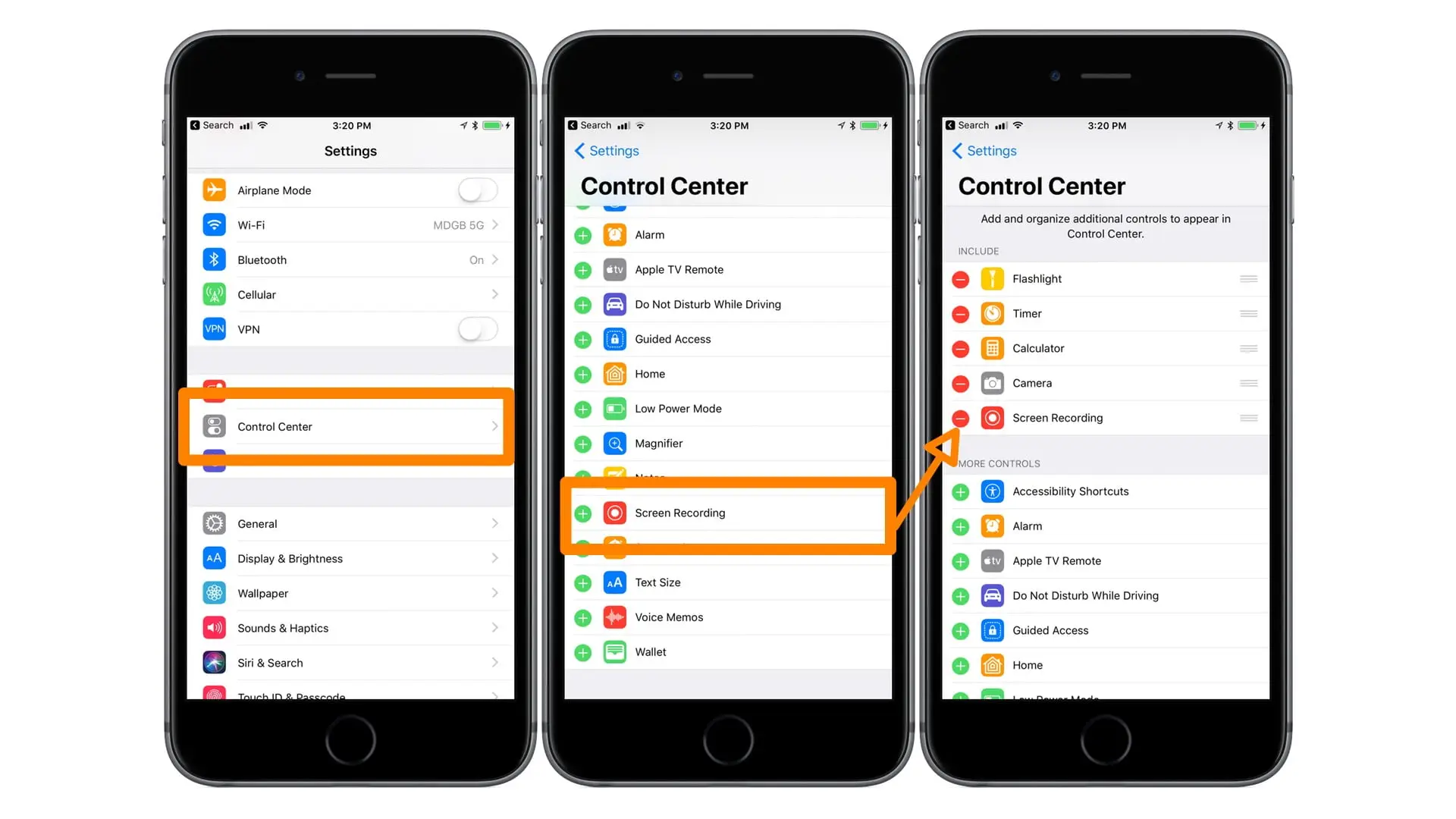
- Launch Settings, and select Control Center
- Scroll down in the list and add Screen Recording
- Close Settings
- Swipe-up from the bottom of the display to reveal Control Center
- Tap Screen Recording button to immediately begin recording (or 3D Touch to bring up menu)
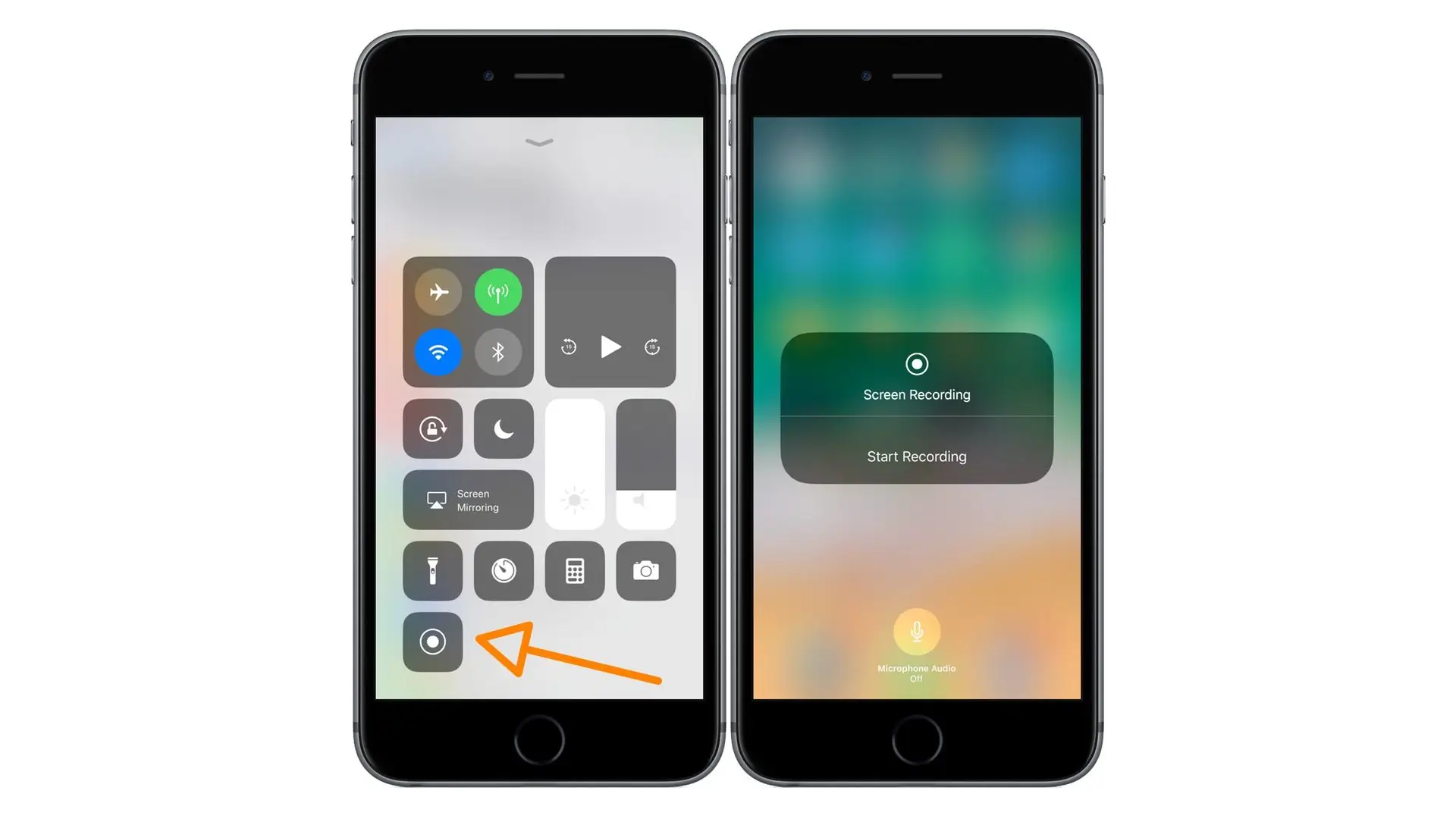
Once you successfully add the Screen Recording Feature to the Included Controls of the iPhone or iPad, you may launch Control Center by swiping down and then click the Round “Record” button as shown.
Once you complete the process of recording your screen, you can turn off screen recording as shown in the following video.