
How to Uninstall Skype Manually
To manually uninstall Skype from your Mac, follow these steps:
First, quit Skype.
Then remove Skype from the Applications folder.
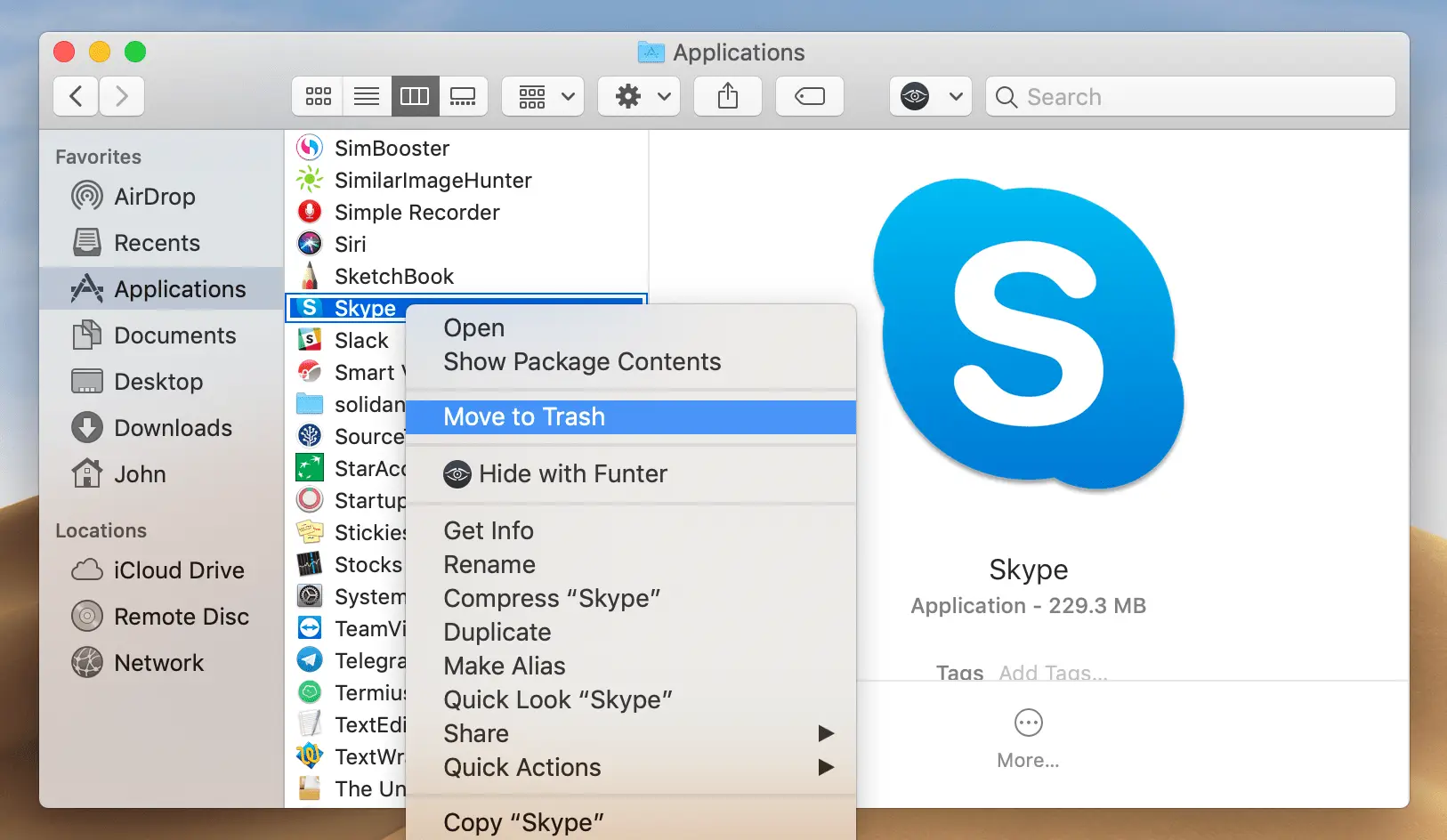
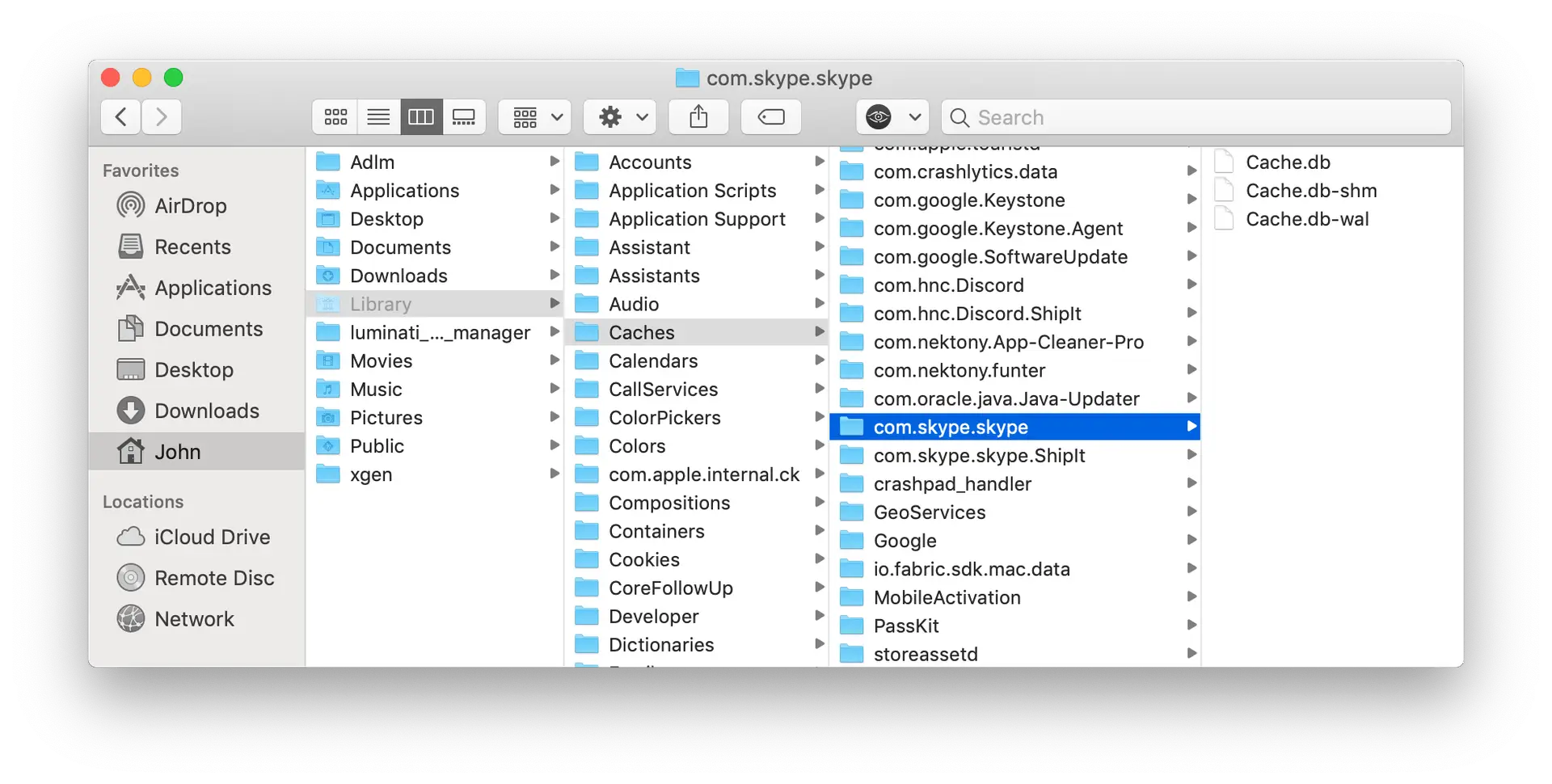
After this, you have to find and remove Skype system files. Note that these files could be somewhere inside the system, in various folders that are usually hidden. Please, check the following system folders to find them:
- ~/Library/Application Support/Skype
- ~/Library/Caches/com.skype.skype
- ~/Library/Caches/skype.skype.Shiplt
- ~/Library/Containers/com.skype.skype.shareagent
- ~/Library/Cookies/com.skype.skype.binarycookies
- ~/Library/Cookies/com.skype.skype.binarycookies_tmp_429_0.dat
- ~/Library/Logs/Skype
- ~/Library/Preferences/com.skype.skype
If you need help getting to the hidden library folder see How To Access Hidden Library Folder on Mac
The last step is to empty your Trash to permanently get rid of Skype.