If you are experiencing an issue with your iPhone or iPad, please download and install the IOS Quick Support Agent via https://itunes.apple.com/us/app/teamviewer-quicksupport/id661649585
**If using iPhone or iPad, make sure you enable screen recording as that is what enables the remote session to function. Please follow the instructions at https://www.aloye.com/ios-screen-recording/ to enable this required feature.
Once TeamViewer QS is installed, please perform the following steps:
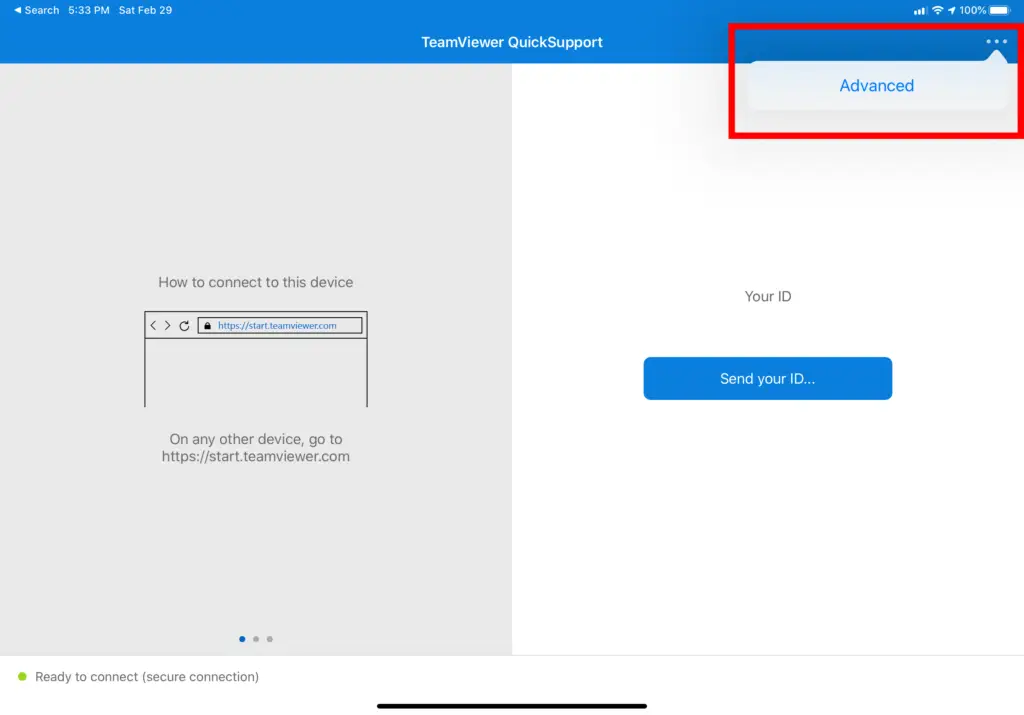
- Launch TeamViewer QS and click the three dots in the upper right corner, then click Advanced as circled in red in the image below.
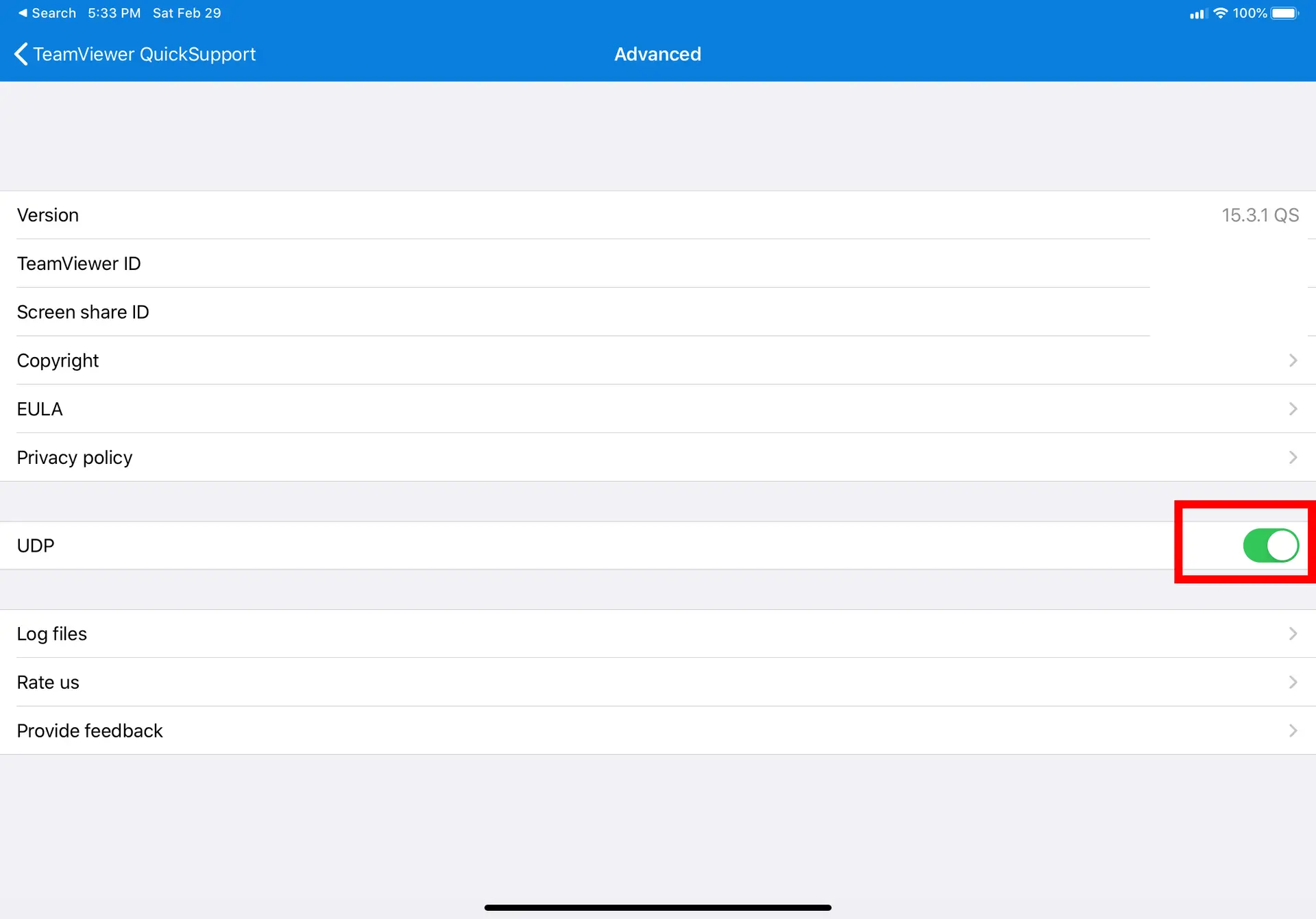
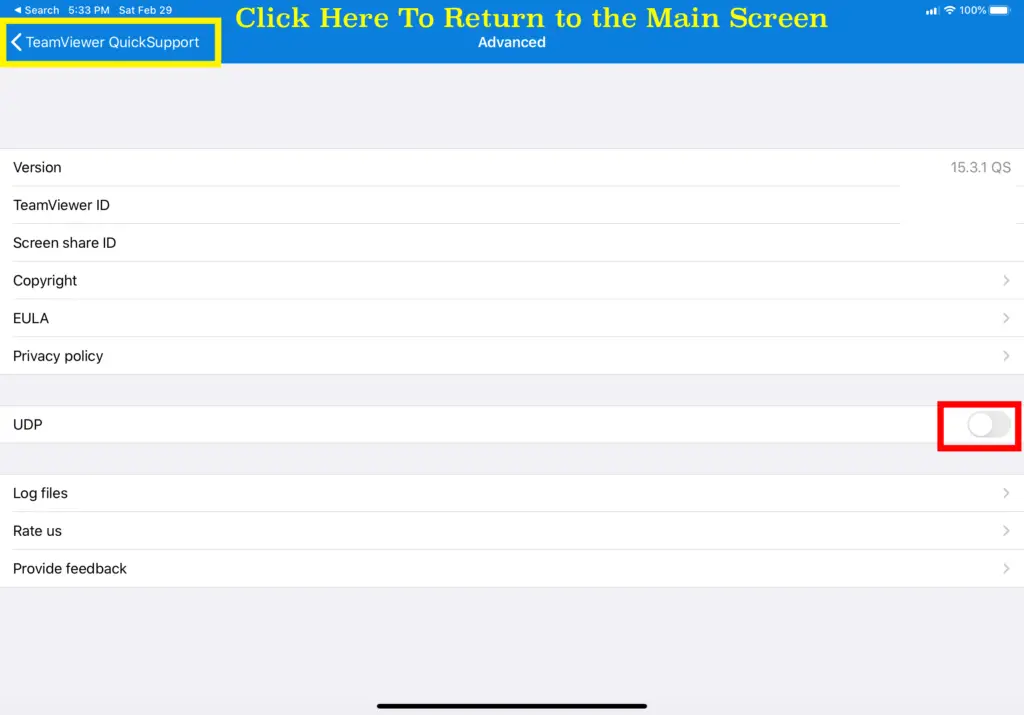
- Locate the UDP Slider as shown below in the red square.
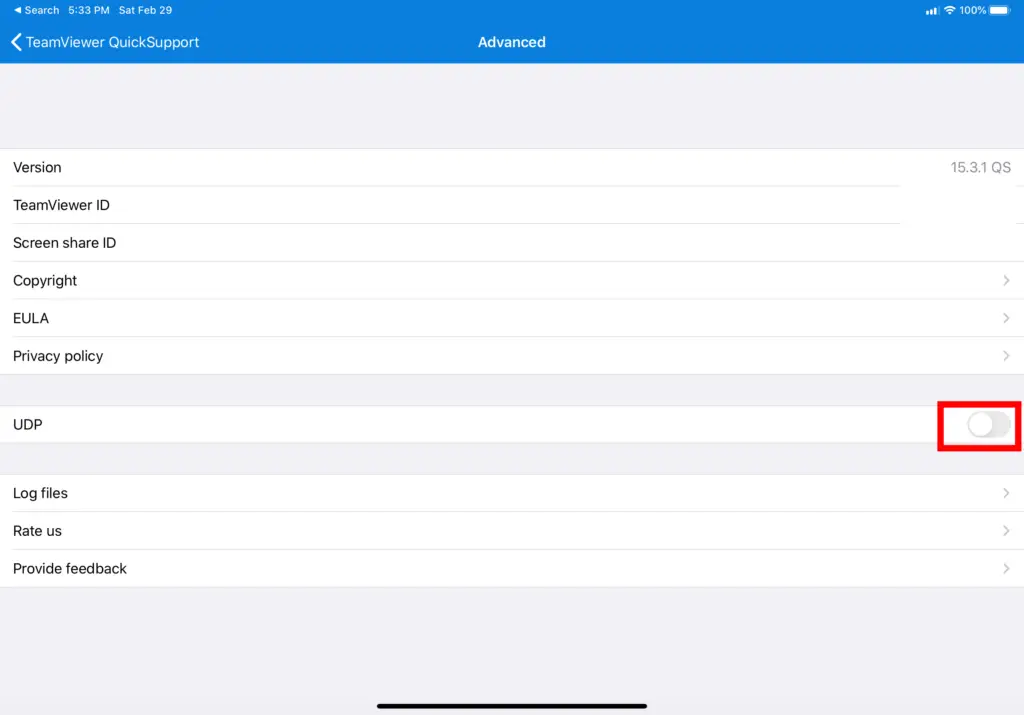
- Disable the UDP Slider by turning it off as shown in the red square below.
- Then click the yellow circled TeamViewer Quick Support Arrow to return to the main screen as shown below
- After retiring to the main Team Viwer QS Screen, please provide the ID #