
Mac users may encounter issues when activating their copy of Microsoft Office if they previously entered the incorrect information when attempting to activate or had another version of Office installed that was not properly removed.
This issue may also appear in the form of repeating Microsoft Office login requests.
To fix this, you may need to clear out the Mac’s keychain since it saved the incorrect information.
To clear the keychain:
1. Close all Microsoft Office applications (Outlook, Word, Excel, PowerPoint, etc.)
2. Open Applications folder in Finder
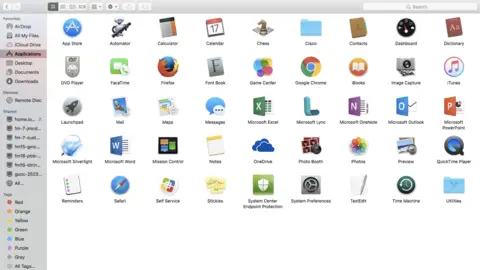
3. Open Utilities folder
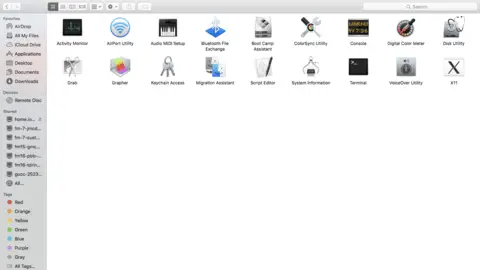
4. Open Keychain Access
5. Select the Keychain Access Search bar in the top right corner
6. Search and delete all references to the following items:
- Exchange
- Office
- ADAL
7. Close Keychain Access
You may then proceed to activate Microsoft Office using the correct information.